Applies to:
Professional Hosting
WordPress Hosting
Universal Hosting
Difficulty:
Easy
Time Needed:
5 minutes
Introduction
This is a quick step-by-step walkthrough for updating your spam filter threshold for your email accounts.
All incoming email is given a score based on how likely our system thinks it might be a spam message. You can lower the score threshold to make it more strict, or increase the threshold to make it more lenient. We recommend a score of 4-6 but if you find genuine emails are being flagged as spam you may wish to increase the required spam score.
Setting your spam filter threshold
STEP 1
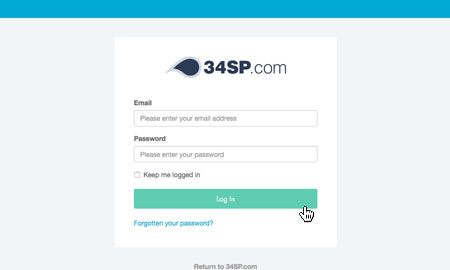
Login to your account
Firstly, you’ll need to login to your 34SP.com account at https://account.34sp.com.
STEP 2
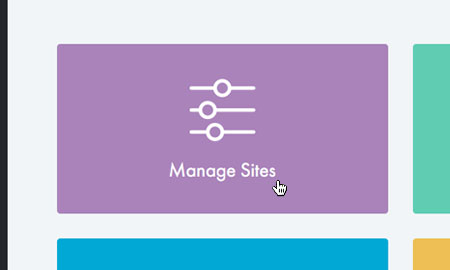
Choose ‘Manage Sites’
Once you have logged in, click on the ‘Manage Sites’ icon and select your website from the list.
STEP 3
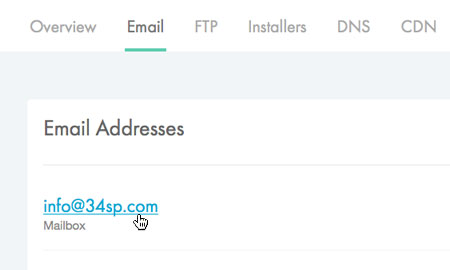
Choose ‘Email’
When viewing the page for your hosting account, click on the button that is labelled ‘Email’.
STEP 4
Choose ‘Edit’
Once the list of email addresses is displayed, choose ‘Edit’ next to the one you want to change.

STEP 5
Choose ‘Spam Settings’
Navigate to the spam settings for the mailbox by selecting the ‘Spam Settings’ tab.

STEP 6
Choose your spam threshold
Set the desired spam score by using the drop-down menu. A lower score will result in stricter filtering, but going too low may filter out legitimate emails. We recommend around 4 to 6.
